 |
|
More Related Stories |
 |

From: $289 to $309  |
|
Adobe Photoshop Creative Suite 2.0 For Windows
Adobe Photoshop Creative Suite 2.0 V9.0
From: $367 to $708 |
|
Adobe Photoshop CS2 for Windows - Upgrade
Enjoy desktop digital imaging with Adobe Photoshop...
From: $145 to $212 |
| Page (1) of 1 - 07/27/05 |
 email article email article |
 print
page print
page |
The brushes
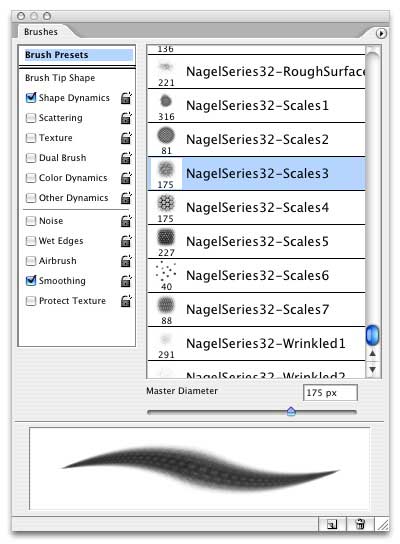
This new library of brushes for Adobe Photoshop--Nagel Series 32--offers 20 custom brushes designed to produce highly detailed human and animal surface textures. These include scales, bumpy surfaces, wrinkled surfaces and rough surfaces that can be used to simulate a wide variety of textures. All of the brushes in this collection (freely downloadable, as usual) are fully dynamic so that you can use your Wacom tablet to control things like angle, opacity, color, brush size, etc. They are also fully customizable, so you can create an endless variety and save them as your own unique brushes.
Now, normally when I create sample images from the brushes in our collection, I try to use just one or two plain strokes in order to give you an idea of how, out of the box (so to speak) these brushes will work for you. This time, though, I took a slightly different approach. Almost all of the examples below use layer styles in Photoshop to accentuate their basic appearance. This is what gives these brushes their non-flat appearance. This type of look is easy enough for you to duplicate on your own, as long as you know what types of settings to use in order to accomplish them.
In all cases where layer styles were used, the basic style is Bevel & Emboss, with the Contour option checked. The "Size" of the bevel is reduced to 0. The gloss contour is often set to a profile other than the default profile. And, most important, the "Range" in the Contour settings is set to a very low number, ranging in these examples from 0 to 16. This allows the layer style to use the surface of the image, rather than just the edges of the layer, to create the emboss effect. Here's a sample of the settings used in the images below.

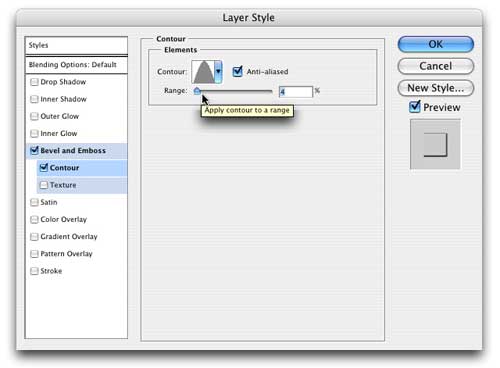
I'll let you sort out your own preferences for your layer styles. (If there's enough interest, I might go ahead and write up a more detailed tutorial on the process. Drop me a line if you'd like to see something like that.) In the meantime, here are several samples of the brushes included in this collection. Below these samples you'll find instructions for downloading and installing this collection.
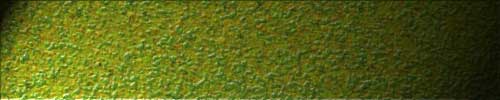
Nagel Series 32-BumpySurface1
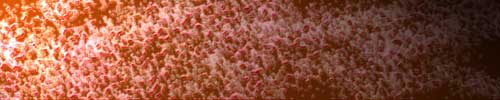
Nagel Series 32-BumpySurface3
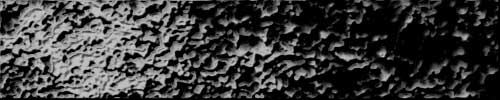
Nagel Series 32-BumpySurface4
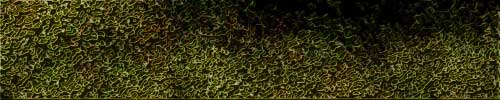
Nagel Series 32-BumpySurface5

Nagel Series 32-RoughSurface3

Nagel Series 32-RoughSurface5
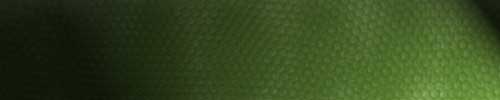
Nagel Series 32-Scales1
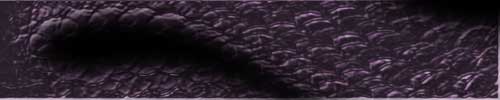
Nagel Series 32-Scales3
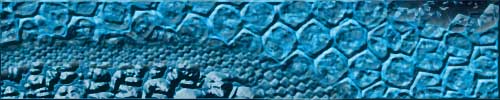
Nagel Series 32-Scales4
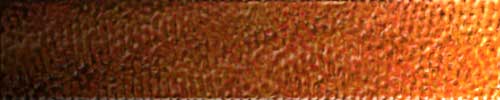
Nagel Series 32-Scales6
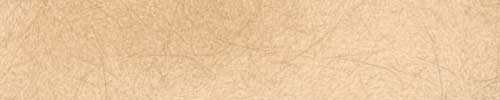
Nagel Series 32-Wrinkled1
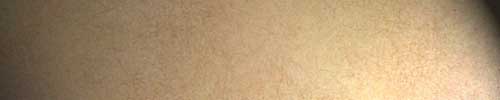
Nagel Series 32-Wrinkled2
Remember that you can find even more free downloads by clicking here.
Download and installation
This week's brush collection is compressed in a Zip archive, which can be decompressed using any Zip utility. (Simply double-click the file in Mac OS X to decompress it.) These brushes support Photoshop CS and Photoshop CS2 (but not Photoshop 7) in Macintosh and Windows environments. They are also supported by recent versions of Adobe Photoshop Elements.
Download: Nagel Series 32 Brushes (280 KB)
Once you download the brush file (NagelSeries32.zip), expand it. (The expanded file will be called NagelSeries32.abr.). Then move the .abr file into the Brushes directory in your Photoshop folder (/Adobe Photoshop/Presets/Brushes).
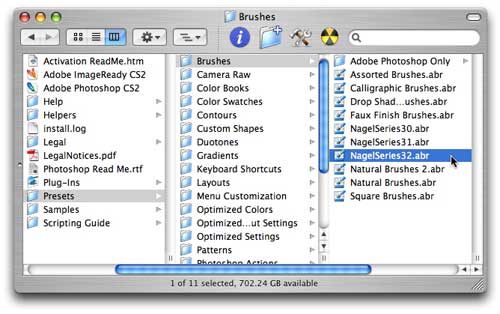
Then launch Photoshop. Open your Brushes palette, and click on the flyaway menu at the top right. There you'll find the new brush collection, which you can install simply by selecting it. After you select it, the new brushes will appear at the bottom of the list of available brushes. (Note that if the brushes do not appear in this flyaway menu, you can load them manually by selecting "Load Brushes" from the menu. A dialog will appear asking you to locate the brush file manually.)
If you have any questions, be sure to visit me in our Adobe Photoshop forum here. And remember that you can find our previous downloads by clicking here.
 If you liked this article
click here to recommend it.
Page: 1
If you liked this article
click here to recommend it.
Page: 1
Related Sites: Creative Mac , Digital Producer , Audio Video Producer , Corporate Media News , Digital Media Designer , Oceania , MacDesignPro , PhotoShop
Related Newsletter: DMN Newsletter , Pixels Newsletter , Mac Alert Newsletter , Digital Media Net , DMNForums
To Comment on This Article, Click HERE
Most Recent Reader Comments:
Click Here To Read All Posts
Must be Registered to Respond (Free Registration!!!, CLICK HERE)
Digital favorites
- Casino Online Non Aams
- Betting Sites UK
- Casino UK Sites
- Casino Online Non Aams
- Casino Non Aams
- Casinos Not On Gamstop
- UK Online Casinos Not On Gamstop
- Meilleur Casino En Ligne
- Crypto Casinos
- Casino Online Italia
- Migliori Giochi Casino Online
- Meilleur Casino En Ligne Français
- Casino En Ligne
- Meilleur Casino En Ligne Francais
- Siti Scommesse Non Aams
- Siti Poker Online Migliori
- Meilleur Site De Poker
- Site De Paris Sportif Nouveau
- Sweet Bonanza Fruits Avis
- Parier Sur Ufc
- Fm카지노 가입코드
- 비트코인 스포츠베팅
- Casino Jeux En Ligne
- Sites De Paris Sportifs
- Casino En Ligne Argent Réel
- Cresus Casino Avis
- Migliore Casino Non Aams
- Meilleur Casino En Ligne
- Meilleur Casino En Ligne 2026
- Casino En Ligne Fiable
- Casino En Ligne
- Migliori Casino Crypto
- Bonus Free Spin Senza Deposito
- Casino Online Non Aams Sicuri
- Migliori Siti Scommesse Non Aams
- Meilleur Casino En Ligne De France
- Casino En Ligne
- Casino En Ligne Fiable
- Trusted Online Casino Malaysia
- Nouveau Casino En Ligne 2026
- オンラインポーカー
- Casino En Ligne Cashlib
Source:Digital Media Online.
All Rights Reserved


