 |
|
More Related Stories |
 |

From: $97 to $128  |
|
Apple Mac OS X v10.4 "Tiger" - MA453Z/A
Mac OS X v10.4 "Tiger"
From: $89 to $1,140 |
|
Apple Mac OS Version 10.0 Full Version For Mac
Apple MAC OS X (M7686LL/A)
From: $63 |
| Page (1) of 2 - 05/31/06 |
 email article email article |
 print
page print
page |
Tip #4: Embrace the symlink
When we last left off, I had just finished describing one method of changing your Document Root directory to the location of your choice by using Bare Bones' Text Wrangler (or BBEdit, if you prefer, as I do) to edit the Apache httpd.conf file. If you'd like to review this process, by all means click on this link to read Part 1 . You're going to need some of the knowledge (such as it is) contained there if you want to follow along a little later. In the meantime, there's a much simpler way to change your Document Root that nicely frames our brief discussion about symbolic links.
If you remember from last time, the Apache Web server built into OS X uses the /Library/WebServer/Documents directory as the default folder to serve Web pages from. This time, we're going to use a symbolic link to change the directory rather than edit the configuration file. If you happen to be unfamiliar with symbolic links (or symlinks for short), here's the lowdown: symlinks have their roots in Mac OS X's Unix underpinnings, and are sort of like the tried-and-true "classic" Mac aliases. However, instead of being a simple pointer to folders or files on your system, a symlink is seen by the system as an actual instance of said file or folder. Such a distinction is important when it comes to Mac OS X's Web server, as Apache will respect and "follow" symlinks, while it will ignore aliases. Therefore, it's possible to create a symlink of the desired folder that you want to use as your root folder, and then move that symlink to where Apache expects to find it. The question becomes, then, how to best create symlinks, since Apple still only makes it easy by default to create aliases. You could, of course, use the Terminal to create symlinks, but as I promised last time that I wouldn't go down that road, we need a more GUI-fied solution. Enter Nick Zitzmann's Symbolic Linker, a free contextual menu item which can be downloaded from this link. Once you install Symbolic Linker and log out and log back in (or at least force restart the Finder), all you need to do to right/control-click on the file or folder you want to make a symlink to and select "Make Symbolic Link" from the contextual menu (fig. 1). You can then move and rename and do whatever else with the symlink you like, as it's just another item in the Finder to be manipulated like anything else.
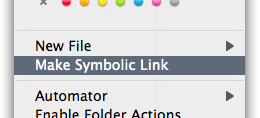
Figure 1
Now that we're all up to speed with symlinks and how to easily create them, let's run through the process of using a symlink to point at a different root folder. Note that this procedure assumes that you haven't already changed the location through the httpd.conf file the way we did last time.
- In the /Library/WebServer/ folder, rename the Documents directory to DocumentsBak (or some other namethe point is not to delete the directory outright in case you ever want to change things back).
- Navigate to your desired root folder (remember, in our earlier example, the path was /Volumes/Data/DocRoot), right-click on it, and select "Make Symbolic Link."
- Drag and drop the symlink (which, in our example, will now be called DocRoot symlink) to the /Library/WebServer folder.
- Rename the symlink to Documents.
- Restart the server by going to the Sharing Preference Pane and clicking the Stop and then the Start buttons next to Personal Web Sharing service.
That's it. The server will then follow the symlink to your new document root folder. However, as Ron Popeil might say, "But waitthere's more!" Now that you have the whole symlink thing down, you'll probably also want to use symlinks to point to various other folders on your hard drive. For example, say you have a big client, which we'll call "BiggCo." You're doing some Web work for BiggCo, so naturally, you have a BiggCo directory somewhere on your hard drive. Inside that directory is likely another directory where you store your Web files, perhaps named Web Docs. You could do the following:
- Create a symlink for your BiggCo/Web Docs folder.
- Drag the symlink to your DocRoot folder.
- Rename the symlink to biggco.
Now, using one of the various URLs alluded to in the last installment, you could then point your browser at http://localhost/biggco/ and see your BiggCo Web files in all their glory. So, just to sum things up, symlinks can not only be used to "move" your Document Root directory without editing the configuration file, they can also redirect individual directories so you can keep project files in a single place.
Tip #5: Change the default document
If you've done any sort of Web design, you're no doubt highly aware that each server you post files to has a default document that it will serve up. Whether it's default.htm, index.html, or something else, any file named for the server's default will be automatically displayed when the root URL or subfolder is accessed (e.g., http://www.site.com/ or http://www.site.com/directory/). Of course, if you're not happy with index.html, which is the Mac OS X server default, you can easily change this as well. Now, for this hint, you'll need to be up to speed with the whole TextWrangler/BBEdit setup that was outlined last time for editing the httpd.conf file, so you may want to review that process if you skipped the previous installment.
As per the instructions from last time, open up the httpd.conf file, hit Command+F in either TextWrangler or BBEdit, and look for the text "index.html" (without quotes, of course). In BBEdit, this should appear at or around line 445. The full text in question should look like this:
# DirectoryIndex: Name of the file or files to use as a pre-written HTML
# directory index. Separate multiple entries with spaces.
#
<IfModule mod_dir.c>
DirectoryIndex index.html
</IfModule>
Related Newsletter: DMN Newsletter , Pixels Newsletter , Mac Alert Newsletter , Digital Media Net , DMNForums , Tutorial Finder
To Comment on This Article, Click HERE
Most Recent Reader Comments:
Click Here To Read All Posts
Must be Registered to Respond (Free Registration!!!, CLICK HERE)
Digital favorites
- Casino Online Non Aams
- Betting Sites UK
- Casino UK Sites
- Casino Online Non Aams
- Casino Non Aams
- Casinos Not On Gamstop
- UK Online Casinos Not On Gamstop
- Meilleur Casino En Ligne
- Crypto Casinos
- Casino Online Italia
- Migliori Giochi Casino Online
- Meilleur Casino En Ligne Français
- Casino En Ligne
- Meilleur Casino En Ligne Francais
- Siti Scommesse Non Aams
- Siti Poker Online Migliori
- Meilleur Site De Poker
- Site De Paris Sportif Nouveau
- Sweet Bonanza Fruits Avis
- Parier Sur Ufc
- Fm카지노 가입코드
- 비트코인 스포츠베팅
- Casino Jeux En Ligne
- Sites De Paris Sportifs
- Casino En Ligne Argent Réel
- Cresus Casino Avis
- Migliore Casino Non Aams
- Meilleur Casino En Ligne
- Meilleur Casino En Ligne 2026
- Casino En Ligne Fiable
- Casino En Ligne
- Migliori Casino Crypto
- Bonus Free Spin Senza Deposito
- Casino Online Non Aams Sicuri
- Migliori Siti Scommesse Non Aams
- Meilleur Casino En Ligne De France
- Casino En Ligne
- Casino En Ligne Fiable
- Trusted Online Casino Malaysia
- Nouveau Casino En Ligne 2026
- オンラインポーカー
- Casino En Ligne Cashlib


