 |
|
More Related Stories |
| Page (1) of 1 - 08/30/06 |
 email article email article |
 print
page print
page |
No, not sticker shock (although that is a possibility). The surprise will be the shiny new interface that graces several of the suite's components. Gone is the well-known menu and toolbar model, to be replaced by tada the Ribbon.
It's not merely for the sheer joy of creating mass confusion in the customer base; there are good reasons for turning the user interface (UI) on its ear, according to Microsoft.
When the menu and toolbar model was first used, programs were considerably less complex than they are today. In 1989, Microsoft Word for Windows 1.0 boasted two, count 'em two toolbars. Word 2.0 still had two toolbars in 1992, but it added nested dialog boxes.
Fast forward two more years. Word 6.0's toolbar count had jumped to eight, with a herd of other UI additions, such as contextual (right-click) menus, tabbed dialog boxes, toolbars at the bottom of the screen, and Wizards. Word 95 only added one more toolbar, but Word 97 doubled the count to 18, and added multi-level contextual menus. Word 2000 had 23, and introduced tricks like hiding infrequently-used menu items. Seven more toolbars appeared in Word 2002, along with eight Task Panes, and Word 2003 added one more toolbar and eleven more Task Panes.In case you haven't been counting, that's a grand total of 31 toolbars and 19 Task Panes, plus hundreds of menu items, in Word 2003. It's no wonder that most people only use a fraction of the available features!
Faced with the potential to add even more clutter, Microsoft decided to do some research and figure out a way to make the many features coming in Office 2007 accessible. After assembling millions of data points showing how people actually use the products which menu items they click, in what order, when they use keyboard shortcuts, what features they use most frequently, and (thanks to support calls and newsgroup questions) what features and functions they can't find (though they exist in the products) the company came up with a plan.
| Outlook 2007 has a hybrid interface: the shell uses menus and toolbars, while messages feature the new Ribbon. |
Instead of toolbars and menus that users have to search through at length to find what they want, there would be a tabbed interface known as the Ribbon. Each tab would be organized around a specific scenario. For example, Word's (or, more correctly, Office Word's) tabs, when you open a document, are Home, Insert, Page Layout, References, Mailings, Review, and View. However, additional tabs may appear when circumstances warrant. If you insert a table in a document, two additional tabs of Table Tools (Design and Layout) materialize. As soon as you click outside the table, they go away.
On each tab, users find blocks of functions relevant to the tab. On the Insert tab, for example, you'll find all of the things you can insert into a document: shapes, pages, tables, illustrations, links, headers and footers, text and symbols. If you decide to insert, say, a cover page, when you click that choice you get a drop-down called a Gallery showing all of the possible cover page styles (some smaller Galleries show up on the Ribbon itself). As you browse a Gallery, each possibility will be previewed right in your document.
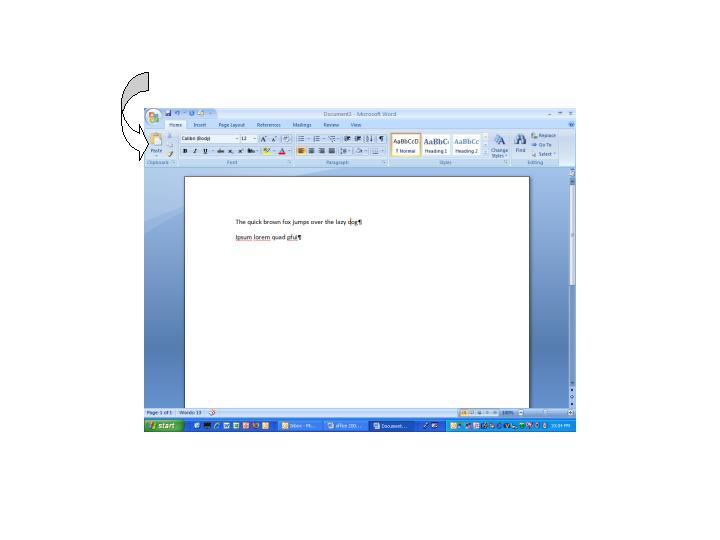 |
| The Ribbon exposes frequently-used features in groups of related controls. |
On the Page Layout tab, you can choose themes, backgrounds, paragraph and page setups and miscellaneous items, such as text wrapping.
The Ribbon has one big drawback, particularly on smaller screens. It's about the height of four toolbars, so it gets in the way during document creation. Microsoft got a lot of feedback about this, and has changed the latest version of the beta to eliminate the Ribbon when you double-click a tab. Double-click again, and it comes back.
For basic document commands such as File/Open, there's yet another UI element: the Office Button. It's a big round button containing the Office logo at the top left of the application's window, and has a customizable mini-toolbar (the Quick Access Toolbar) extending off its right side.
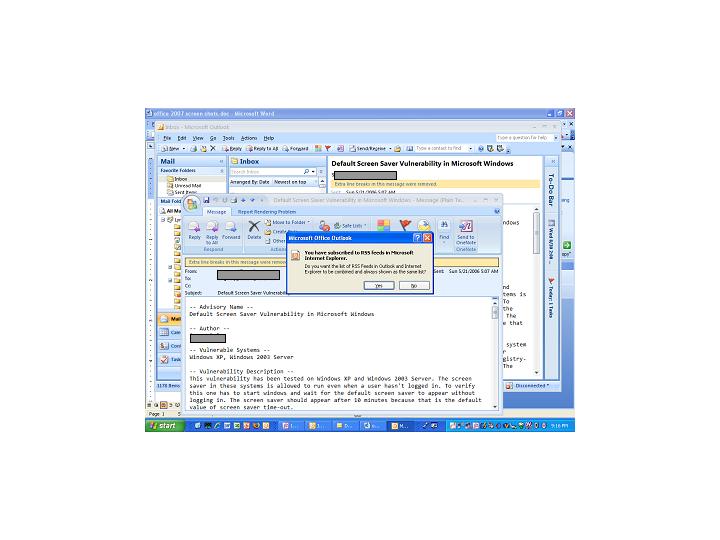 |
| RSS feeds can be pulled straight into Outlook 2007. |
You'll find the new UI in Office 2007 Word, Excel, PowerPoint, and Access. A hybrid UI appears in Outlook; the program shell (InBox, etc.) uses menus and toolbars, but functions such as composing messages take advantage of Ribbons and Galleries.
But, you say, you want to continue to use the old-style UI? Not possible "classic" mode isn't available. There will, however, be a tool that lets you indicate what you want to do on a representation of the old UI, and then shows you where the equivalent commands are in the new.
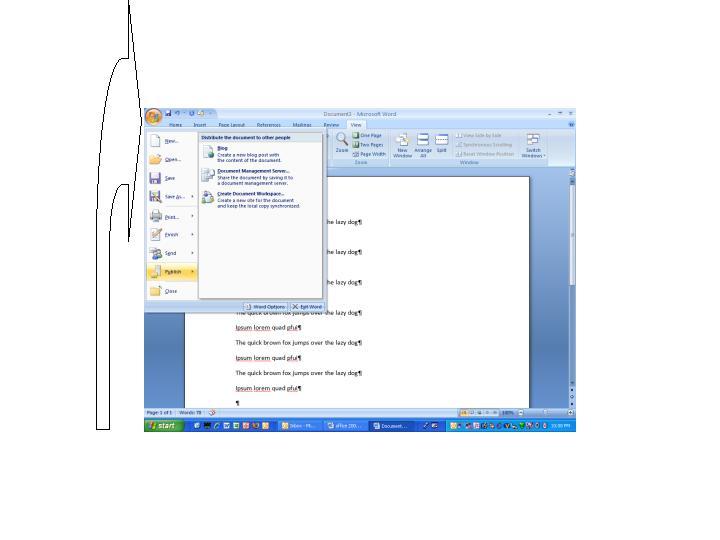 |
| The Office button gives you access to the basics: Open, Save, Print, and so forth. You can even publish your blog from within Word. |
But the new UI is only part (though, admittedly, a huge part) of the Office 2007 story. Another large component is the new default file format for Word, Excel and PowerPoint: Office Open XML, based on the ECMA open XML format. Microsoft says that these files are smaller and less prone to corruption than the old binary formats. It also says that the applications are backwards compatible, so "most" existing Office files will open in Office 2007. Users can also set the old binary formats as their default in the new Office.
Most applications in the Office suite have been tweaked, too. Excel's capacity has been expanded to 1 million rows x 16,000 columns, and its table support has been enhanced. Outlook has a new To-Do bar, the capacity to integrate RSS feeds in your mailbox, easier ways to share calendar information and view attachments, and, in conjunction with Exchange Server 2007, and new calendaring capabilities (you can define out-of-office message actions separately for inside and outside your company, for example).
PowerPoint allows you to digitally sign presentations, and offers additional slide formatting tools.
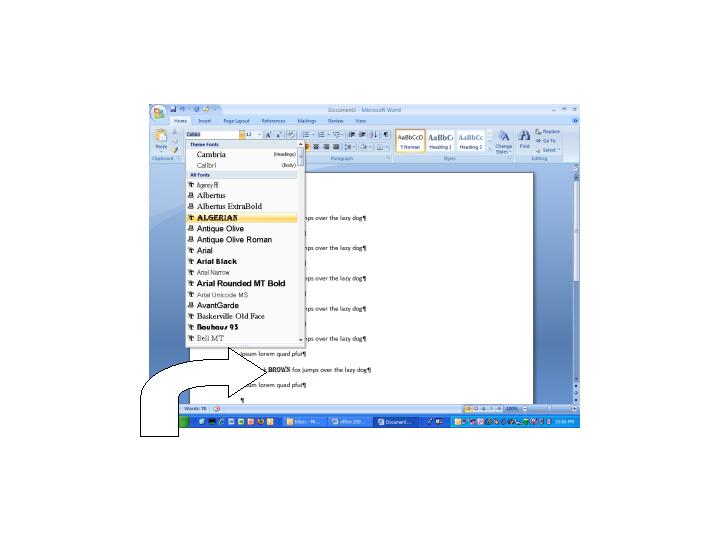 |
| See how the selected font is previewed in the selected text in the document? |
Word's formatting is greatly improved, with live previews that allow you to see what a change does to the look of a document. You can digitally sign documents, and a tri-pane view lets you compare two versions of a file, with changes clearly marked.
All applications have strong ties to SharePoint Server 2007, which provides workflow and collaboration capabilities. Microsoft is obviously trying to make it a necessary part of any Office 2007 deployment.
Of course, the core applications aren't all there is to the new Office System 2007. There are updates to InfoPath and OneNote and Project and Publisher and SharePoint Designer (replacing FrontPage) and Visio and the new kid on the block Groove peer-to-peer collaboration, available in various combinations.
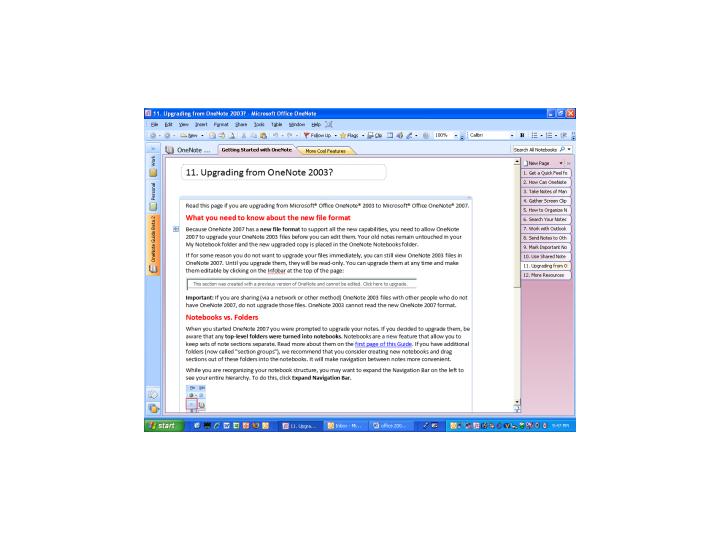 |
| OneNote's new UI features many more tabs to help organize your notes. |
There are also Excel server components; in fact, servers play a large part in reaping the greatest benefit from the entire suite. Unfortunately, upgrading or adding those servers will add a lot to the cost of deployment.
I could go on and on, but the best way to get a feel for the new Office is to try it out for yourself. Microsoft offers a Web-based test drive of the current beta that provides much of the functionality of the actual product (though you can't save or print from it), complete with tutorials to walk you through the features. Once you've tried it, you'll have a better sense of whether the upgrade will fly in your organization.
 If you liked this article
click here to recommend it.
Page: 1
If you liked this article
click here to recommend it.
Page: 1
Related Newsletter: DMN Newsletter , CMN Newsletter , Pixels Newsletter , Gadgets Newsletter , Tutorial Finder , Review Seeker , IT Weekly Newsletter
To Comment on This Article, Click HERE
Most Recent Reader Comments:
Click Here To Read All Posts
Must be Registered to Respond (Free Registration!!!, CLICK HERE)
Digital favorites
- Casino Online Non Aams
- Betting Sites UK
- Casino UK Sites
- Casino Online Non Aams
- Casino Non Aams
- Casinos Not On Gamstop
- UK Online Casinos Not On Gamstop
- Meilleur Casino En Ligne
- Crypto Casinos
- Casino Online Italia
- Migliori Giochi Casino Online
- Meilleur Casino En Ligne Français
- Casino En Ligne
- Meilleur Casino En Ligne Francais
- Siti Scommesse Non Aams
- Siti Poker Online Migliori
- Meilleur Site De Poker
- Site De Paris Sportif Nouveau
- Sweet Bonanza Fruits Avis
- Parier Sur Ufc
- Fm카지노 가입코드
- 비트코인 스포츠베팅
- Casino Jeux En Ligne
- Sites De Paris Sportifs
- Casino En Ligne Argent Réel
- Cresus Casino Avis
- Migliore Casino Non Aams
- Meilleur Casino En Ligne
- Meilleur Casino En Ligne 2026
- Casino En Ligne Fiable
- Casino En Ligne
- Migliori Casino Crypto
- Bonus Free Spin Senza Deposito
- Casino Online Non Aams Sicuri
- Migliori Siti Scommesse Non Aams
- Meilleur Casino En Ligne De France
- Casino En Ligne
- Casino En Ligne Fiable
- Trusted Online Casino Malaysia
- Nouveau Casino En Ligne 2026
- オンラインポーカー
- Casino En Ligne Cashlib


 (Rated by 11 users)


