 |
|
More Related Stories |
 |

From: $289 to $309  |
|
Adobe Photoshop Elements 3.0 Software - Windows.
Adobe Photoshop Elements 3.0 Software
From: $35 to $85 |
|
Adobe Photoshop Elements 4.0 for Windows
Adobe Photoshop Elements 4.0 software combines pow...
From: $35 to $109 |
| Page (1) of 1 - 05/16/06 |
 email article email article |
 print
page print
page |
The brushes
There are 15 brushes in this newest collection--some designed to work like wet and dry bristle brushes, others designed to emulate rough, dry media like charcoal and pastels. The brushes cover three categories of tools, described below. All of them use unique nibs to provide you with maximum variety, so that you can use the nibs to create all-new brushes that may suit your needs better than the brushes included in this collection.
Bristle brushes. These brushes behave like bristle paint brushes, some wet, some fairly dry. The emphasis on the design of these brushes was on creating a convincing bristle texture, one that would remain evident even with repeated applications of the brush over the same area of the canvas. The examples below all use quick strokes with the respective brushes. All are designed to be fully dynamic, so that you can interactively adjust parameters on the fly through the use of a Wacom tablet.
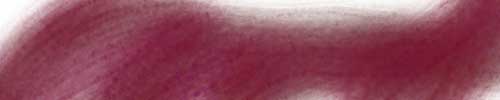
Nagel Series 41 Bristles 1
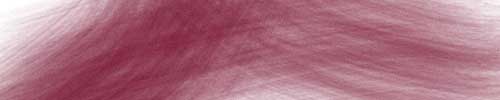
Nagel Series 41 Bristles 2
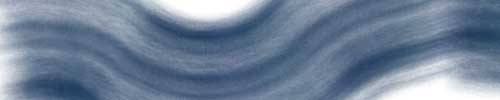
Nagel Series 41 Bristles 3
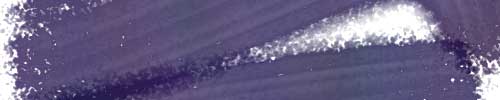
Nagel Series 41 Bristles 4
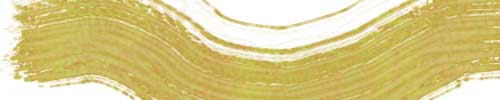
Nagel Series 41 Bristles 5
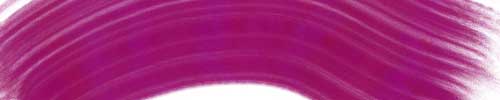
Nagel Series 41 Bristles 6
Charcoal. These rough brushes are designed to emulate charcoal on a textured surface, such as canvas or rough paper. The textures are incorporated into the brushes but can be changed (or removed completely) by making adjustments in the Texture tab of the Brushes palette in Photoshop. Like the Bristle brushes, the Charcoal brushes are fully dynamic so that you can adjust their appearance on the fly.
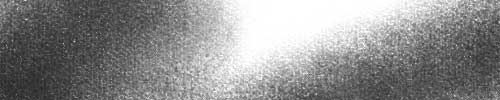
Nagel Series 41 Charcoal 1
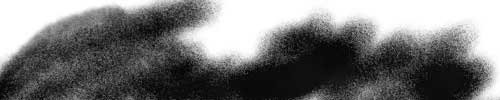
Nagel Series 41 Charcoal 2
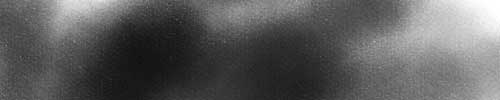
Nagel Series 41 Charcoal 3
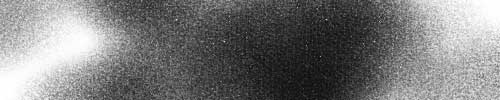
Nagel Series 41 Charcoal 4
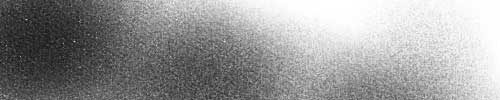
Nagel Series 41 Charcoal 5
Rough Pastel. These brushes are similar to the Charcoal brushes, but they do not have textures associated with them. Instead, you simply get the textured nib with various dynamics applied to simulate the look of pastels of less coarse surfaces. (You can also add in textures as you see fit.) Here are examples of these brushes.
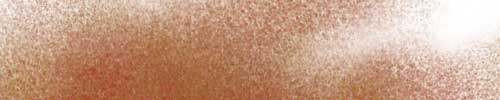
Nagel Series 41 Rough Pastel 1
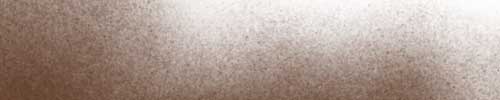
Nagel Series 41 Rough Pastel 2
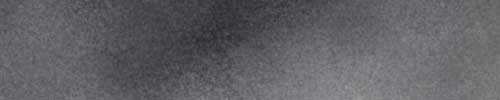
Nagel Series 41 Rough Pastel 3
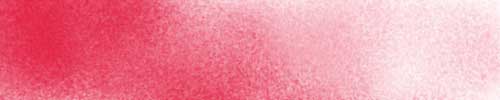
Nagel Series 41 Rough Pastel 4
All of the brushes in this collection are fully dynamic for size, scattering, color variation, opacity and/or other parameters. They can also be modified to suit your particular needs. Most are based on fairly large image samples, and you can adjust the base size up or down to suit your needs.
Remember that you can find even more free downloads by clicking here. http://www.creativemac.com/articles/listarticle.jsp?type=downloads
Download and installation
This week's brush collection is compressed in a Zip archive, which can be decompressed using any Zip utility. (Simply double-click the file in Mac OS X to decompress it.) These brushes support Photoshop CS and Photoshop CS2 in Macintosh and Windows environments. They are also supported by recent versions of Adobe Photoshop Elements. These brushes will not function in Photoshop 7.
As always, this latest collection (Nagel Series 41) is free to download and use for commercial and non-commercial purposes.
Download: Nagel Series 41 Brushes (324 KB)
Once you download the brush file (NagelSeries41.zip), expand it. (The expanded file will be called NagelSeries41.abr.). Then move the .abr file into the Brushes directory in your Photoshop folder (/ Adobe Photoshop /Presets/Brushes) to make it accessible from the Brushes palette's flyaway menu once you launch Photoshop.
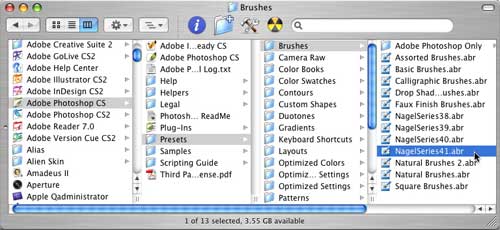
Then launch Photoshop. Open your Brushes palette, and click on the flyaway menu at the top right. There you'll find the new brush collection, listed in alphabetical order with the other brushes in your Brushes directory. You can install this collection simply by selecting it. After you select it, the new brushes will appear at the bottom of the list of available brushes. (Note that if the brushes do not appear in this flyaway menu, you can load them manually by selecting "Load Brushes" from the menu. A dialog will appear asking you to locate the brush file on your hard drive.)
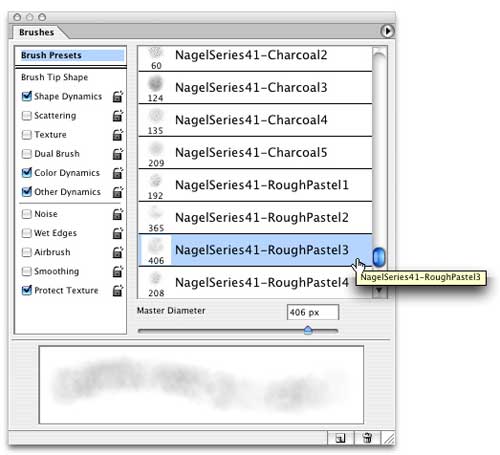
If you have any questions, be sure to visit me in our Adobe Photoshop forum at DMN Forums by clicking here. And remember that you can find our previous downloads by clicking here.
 If you liked this article
click here to recommend it.
Page: 1
If you liked this article
click here to recommend it.
Page: 1
Related Sites: Creative Mac , Digital Producer , Audio Video Producer , Corporate Media News , Digital Media Designer , Oceania , MacDesignPro , PhotoShop
Related Newsletter: DMN Newsletter , Pixels Newsletter , Mac Alert Newsletter , Digital Media Net , DMNForums
To Comment on This Article, Click HERE
Most Recent Reader Comments:
Click Here To Read All Posts
Must be Registered to Respond (Free Registration!!!, CLICK HERE)
Digital favorites
- Casino Online Non Aams
- Betting Sites UK
- Casino UK Sites
- Casino Online Non Aams
- Casino Non Aams
- Casinos Not On Gamstop
- UK Online Casinos Not On Gamstop
- Meilleur Casino En Ligne
- Crypto Casinos
- Casino Online Italia
- Migliori Giochi Casino Online
- Meilleur Casino En Ligne Français
- Casino En Ligne
- Meilleur Casino En Ligne Francais
- Siti Scommesse Non Aams
- Siti Poker Online Migliori
- Meilleur Site De Poker
- Site De Paris Sportif Nouveau
- Sweet Bonanza Fruits Avis
- Parier Sur Ufc
- Fm카지노 가입코드
- 비트코인 스포츠베팅
- Casino Jeux En Ligne
- Sites De Paris Sportifs
- Casino En Ligne Argent Réel
- Cresus Casino Avis
- Migliore Casino Non Aams
- Meilleur Casino En Ligne
- Meilleur Casino En Ligne 2026
- Casino En Ligne Fiable
- Casino En Ligne
- Migliori Casino Crypto
- Bonus Free Spin Senza Deposito
- Casino Online Non Aams Sicuri
- Migliori Siti Scommesse Non Aams
- Meilleur Casino En Ligne De France
- Casino En Ligne
- Casino En Ligne Fiable
- Trusted Online Casino Malaysia
- Nouveau Casino En Ligne 2026
- オンラインポーカー
- Casino En Ligne Cashlib
Source:Digital Media Online.
All Rights Reserved


