 |
|
More Related Stories |
 |

From: $97 to $128  |
|
Apple Mac OS X v10.4 "Tiger" - MA453Z/A
Mac OS X v10.4 "Tiger"
From: $89 to $1,140 |
|
Apple Mac OS Version 10.0 Full Version For Mac
Apple MAC OS X (M7686LL/A)
From: $63 |
| Page (1) of 1 - 06/15/06 |
 email article email article |
 print
page print
page |
For our final foray into ways to beef up the Web server included with Mac OS X, we might as well delve into technologies that actually require the server to be running in order to work. Today we're going to learn how to switch on two such server-side technologies that are built into Mac OS X but disabled by default: PHP and SSI. And considering how tantalizing I've already made our final installment sound, how could you not read further?
Speaking of reading further, I strongly encourage you to review the previous two installments of this series, as you need to be familiar with the Finder/TextWrangler/BBEdit method of accessing the httpd.conf file from Part 1 as well as the instructions for how to change the default document discussed in Part 2. Here are the links to both articles:
- Part 1: Most everything you need is built right in
- Part 2: Symlinks + default documents + hosts file = big fun
Now, before we go about the business of enabling PHP and SSI, some of you might be wondering what PHP and/or SSI are. While we're not really going to discuss how to code pages using PHP or SSI (that subject could easily be an entire series unto itself), it's still worth a bit of setup. In a nutshell, both PHP and SSI are server-side technologies, meaning that they need a functioning Web server in order to function. Whereas languages such as JavaScript require the end user to have the appropriate technology built into the browser, both PHP and SSI process commands and write HTML pages on the fly before sending content out to the end user's browser. That's the view from space, of course, so the question for the average designer is likely one word: Why? Or, to use more than one word, how would using PHP and/or SSI benefit me? On the most basic level, is behooves designers to at least dabble in PHP or SSI (or both) because it will make their job easier. For example, both can be used to automatically embed headers and footers into pages, which translates into less code to manage and maintain. That's just the tip of the iceberg, of course. Personally, I use SSI in very small doses only when necessary (in the rare case a client's server doesn't support PHP). I have, however, really come to rely on PHP in recent years, as a dash here and there makes site design and maintenance so much more pleasant. Both technologies, though, are fairly easy for the experienced HTML'er to pick up, so if you'd like to start learning more about either PHP or SSI, here are a couple of handy links:
- PHP
- SSI
In any event, as I mentioned, Mac OS X ships with both PHP and SSI in a disabled state by default, so let's figure out how to flip the switch.
More httpd.conf hijinks
There are two basic steps necessary in order to enable PHP and/or SSI. The first step is to tell Apache that you want them to be enabled, and the second is to further instruct Apache that PHP and SHTML files can and should be handled as default file types. And while the steps are the same for each, the process is slightly different, so let's take them one at a time.
SSI
As I just mentioned, step one involves telling Apache that you want to enable SSI. This is handled on two separate lines in the configuration document, so open up your httpd.conf file in TextWrangler or BBEdit (again, as outlined in Part 1 of this series), hit the Command+F keystroke to bring up the Find dialog, and search for the word "multiviews." Why that word? Well, because it's a relatively unique word that will take us directly to where we need to go. If you're using BBEdit, the line we're looking for is 399, and for you TextWrangler users, the line in question is a few lines down from where "multiviews" is found:
Options Indexes FollowSymLinks MultiViews
What we need to do is add the "Includes" entry here:
Options Indexes FollowSymLinks MultiViews Includes
As an aside, what this line does is to tell your default directory what it is and isn't allowed to do. For example, if you were to delete the FollowSymLinks portion of that line, all the smooth and mellow symlink goodness we talked about last time wouldn't work anymore. And since we want SSI to work, we have to add this option here. One down, one to go: go ahead and search for the term "server-parsed." In BBEdit, you'll be dropped all the way down to line 885; the text should look like this:
# To use server-parsed HTML files
#
#AddType text/html .shtml
#AddHandler server-parsed .shtml
This one's even easier than the last one, as all we need to do here is uncomment the AddType and AddHandler lines by removing the pound sign from the beginning of each line. Once you do that, the lines should look like this:
AddType text/html .shtml
AddHandler server-parsed .shtml
At this point, a simple restart of the server (another technique discussed in Part 1) should be all that's needed, and SSI will be enabled. However, there's still step two to worry about: setting (at least) index.shtml as a default document, and since that was covered in Part 2, you'll need to back up and read Tip #5 contained therein.
Don't forget to restart the server once you're done, and you'll be ready to go with SSI. The last thing to do is to run a little test to see if it's working, and for that, we'll need to create a new HTML (or, in this case, SHTML) file. Staying in BBEdit/TextWrangler, start a new document and enter in the following code:
<html>
<body>
<!--#echo var="DATE_LOCAL" -->
</body>
</html>
I'm being fast and loose with proper HTML here, but since this is just a test, we'll let it slide. What we've done here is to insert a basic SSI directive ("show the current date and time") into the flow of the normal HTML. Save the document as index.shtml into your Document Root directory, load the URL of your local machine, and, if everything is working, you should see something close to Figure 1:
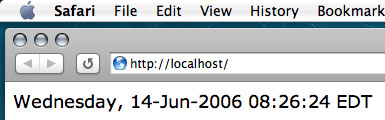
Figure 1
OK, we're in business with SSI. Time to do the same for PHP.
PHP
As I mentioned earlier, the process for enabling PHP is the same for SSI; we just have to look in different places. So, if it's not open already, load up your httpd.conf file in BBEdit/TextWrangler and search for "php" (again, without the quotes). The first hit you'll get occurs at line 240, shown here in context:
#LoadModule perl_module libexec/httpd/libperl.so
#LoadModule php4_module libexec/httpd/libphp4.so
LoadModule hfs_apple_module libexec/httpd/mod_hfs_apple.so
We care about the middle one, and all that we need to do is remove the pound character before the line, which will make it look like this:
LoadModule php4_module libexec/httpd/libphp4.so
We've got one more line to uncomment, so hit Command+G a few times (which will search on the phrase "php" repeatedly) until you get to line 284, which I'll again show in context:
#AddModule mod_perl.c
#AddModule mod_php4.c
AddModule mod_hfs_apple.c
We're once again after the middle one, so eliminate the pound sign with extreme prejudice:
AddModule mod_php4.c
And that's it. Now, normally we'd be looking to do step two, which would be to add index.php to the list of document defaults, but it turns out that once you've enabled PHP, Apache executes a conditional statement that automatically recognizes index.php as a default, so in other words, we're done. Restart the server, and it'll be time to create a quick test to see if it's working. Start a new document and enter in the following:
<html>
<body>
<?php phpinfo(); ?>
</body>
</html>
Again, we're not winning any awards for proper code, but we're still just testing. Anyway, save this document in your Document Root directory as index.php, and load up the page in your browser. You should see something like Figure 2. If not, make sure you don't have competing default documents in your Document Root and try again.
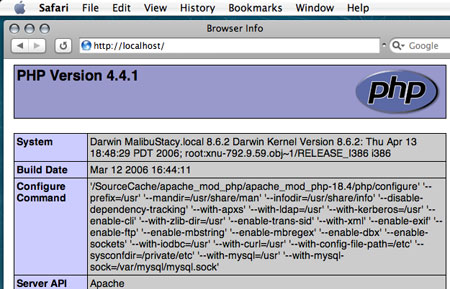
Figure 2
The PHP code we wrote is a simple one; it just "forces" the server to provide information about your particular PHP setup. Now, it's worth noting that the version of PHP built into OS X isn't the most up-to-date (as of this writing, PHP is at version 5.1.4), but for designers looking to dabble, it's a great place to start. I've even found that most client setups haven't even migrated to PHP 5 yet, so it hasn't really been an issue.
Anyway, that should do it, boys and girls. If you've been with me since the beginning, you should have a pretty nice Web server setup going by now. So go forth and code!
 If you liked this article
click here to recommend it.
Page: 1
If you liked this article
click here to recommend it.
Page: 1
Related Sites: Creative Mac , Digital Producer , Audio Video Producer , Digital Media Designer , MacDesignPro , IT Business Net , Hardware (IBN) , Networking (IBN) , Internet (IBN)
Related Newsletter: DMN Newsletter , Pixels Newsletter , Mac Alert Newsletter , Tutorial Finder , Review Seeker , IT Weekly Newsletter
To Comment on This Article, Click HERE
Most Recent Reader Comments:
Click Here To Read All Posts
Must be Registered to Respond (Free Registration!!!, CLICK HERE)
Digital favorites
- Casino Online Non Aams
- Betting Sites UK
- Casino UK Sites
- Casino Online Non Aams
- Casino Non Aams
- Casinos Not On Gamstop
- UK Online Casinos Not On Gamstop
- Meilleur Casino En Ligne
- Crypto Casinos
- Casino Online Italia
- Migliori Giochi Casino Online
- Meilleur Casino En Ligne Français
- Casino En Ligne
- Meilleur Casino En Ligne Francais
- Siti Scommesse Non Aams
- Siti Poker Online Migliori
- Meilleur Site De Poker
- Site De Paris Sportif Nouveau
- Sweet Bonanza Fruits Avis
- Parier Sur Ufc
- Fm카지노 가입코드
- 비트코인 스포츠베팅
- Casino Jeux En Ligne
- Sites De Paris Sportifs
- Casino En Ligne Argent Réel
- Cresus Casino Avis
- Migliore Casino Non Aams
- Meilleur Casino En Ligne
- Meilleur Casino En Ligne 2026
- Casino En Ligne Fiable
- Casino En Ligne
- Migliori Casino Crypto
- Bonus Free Spin Senza Deposito
- Casino Online Non Aams Sicuri
- Migliori Siti Scommesse Non Aams
- Meilleur Casino En Ligne De France
- Casino En Ligne
- Casino En Ligne Fiable
- Trusted Online Casino Malaysia
- Nouveau Casino En Ligne 2026
- オンラインポーカー
- Casino En Ligne Cashlib


